TERMIX v0.2.13Dark
Navigation
› Themes
Fonts
Open source terminal workspace
A focused CLI and TUI for managing terminal profiles, Oh My Posh themes, Nerd Fonts, Windows Terminal, PowerShell 7, Git Bash, WSL, macOS, and Linux.
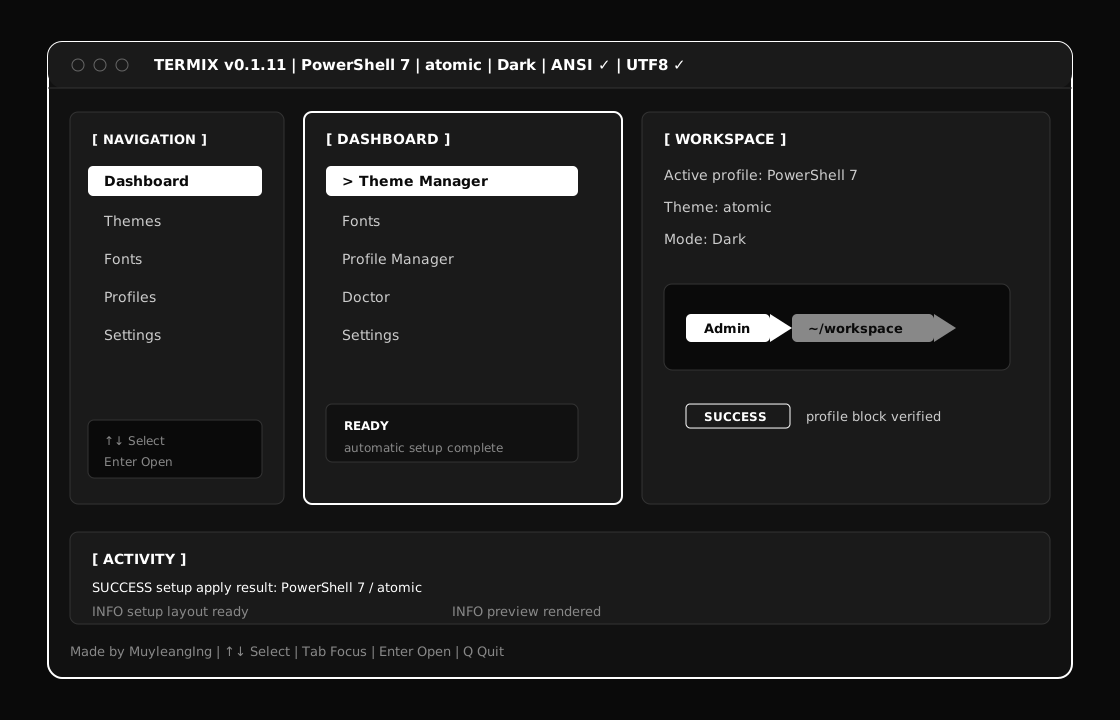
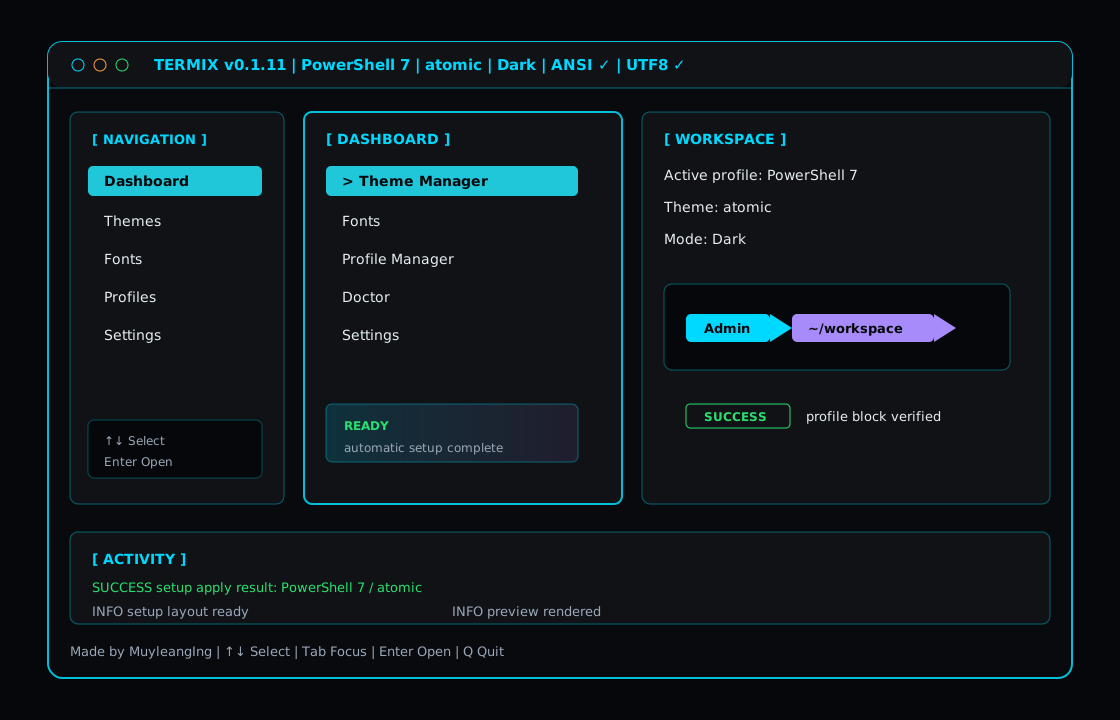
Terminal style demo
Use this visual preview in GitHub Pages, README screenshots, or release notes so users can see the terminal style before installing Termix.
TUI style system
Navigation
› Themes
Fonts
Prompt
Admin~/workspace
main
READY rendered by Oh My Posh
Font Manager
MesloLGM active
MesloLGM active
I installs, Enter saves
Theme Gallery
Termix includes a growing gallery of 120+ terminal themes. Browse, preview, and choose the perfect prompt style for PowerShell, Git Bash, WSL, and more.
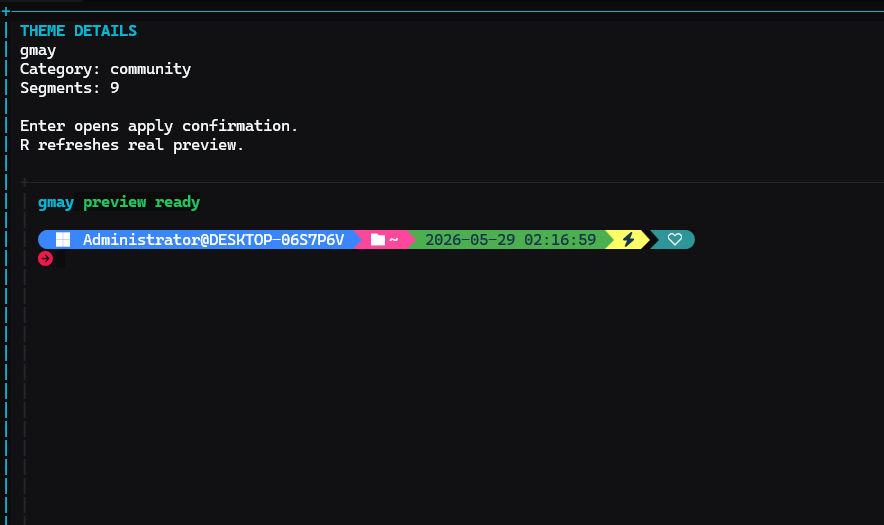
Click a theme thumbnail below to see its full preview.
Install
Normal users do not need to clone the repository or install Go. Use the installer script from GitHub Pages. The script downloads the latest Termix binary from GitHub Releases, asks before replacing an existing install, then bootstraps Oh My Posh, MesloLGM Nerd Font, official Oh My Posh themes, and terminal/VS Code font settings. Close and reopen your terminal after install so the font profile setting is loaded by the terminal app.
& ([scriptblock]::Create((irm https://muyleanging.github.io/Termix-Tui/install.ps1)))

termix setup
termix-tui
Pin a release or skip the update prompt with -Version v0.2.13 -Yes.
curl -fsSL https://muyleanging.github.io/Termix-Tui/install.sh | bash

termix setup
termix-tui
Pin a release or skip the update prompt with bash -s -- --version v0.2.13 --yes.
Manual download
You can also download Termix manually from GitHub Releases:
Developer build
This is only for contributors or developers.
go mod tidy
go test ./...
go build -o bin/termix.exe .
.\bin\termix.exe tuigo mod tidy
go test ./...
go build -o bin/termix .
./bin/termix tuiSetup and recovery
Termix keeps theme files, cache metadata, shell profile blocks, and font settings separate. That means broken cache can be cleared without deleting themes, and shell profile integration can be repaired without duplicating Oh My Posh commands.
termix setup
termix-tui
Picks the target shell profile, verifies official themes, and applies the default Termix font/theme.
termix reinstall
termix reinstall --dry-run
Clears cache metadata, rebuilds official theme cache, repairs the managed profile block, saves config, and runs with fallback fonts.
termix repair
termix profile repair "PowerShell 7"
Fixes CONFIG NOT FOUND, missing theme paths, duplicate profile blocks, and stale cache references.
termix themes update
termix cache rebuild
termix cache clear
Official themes come from Oh My Posh themes. Clearing cache removes metadata only; downloaded theme files stay available.
# BEGIN TERMIX THEME
oh-my-posh init pwsh --config "FULL_THEME_PATH" | Invoke-Expression
# END TERMIX THEME
Termix backs up profile files and replaces only its managed block, so repeated apply commands do not create duplicates.
termix uninstall
termix uninstall profile
termix uninstall cache
termix uninstall downloaded-themes
termix uninstall config
Bare uninstall asks for confirmation, then removes Termix-managed profile blocks, config, cache, downloaded themes, external tools, and the executable. Component commands remove only that part.
CLI
| Command | Purpose |
|---|---|
termix |
Show CLI help and available commands. |
termix tui or termix-tui |
Launch the dashboard. |
termix setup |
Run first-time profile, font, and theme setup. |
termix repair --dry-run |
Preview profile, cache, theme, and font repairs without writing files. |
termix reinstall |
Clean broken cache, rebuild official themes, repair profile integration, save config, and mark setup complete. |
termix themes |
List discovered Oh My Posh theme files. |
termix themes update |
Download official Oh My Posh themes and rebuild cache. |
termix themes apply catppuccin_mocha --profile "PowerShell 7" |
Write or replace the managed Oh My Posh block in the selected profile. |
termix cache rebuild |
Rebuild cache from real theme files. If none exist, Termix imports official themes. |
termix doctor |
Check terminal, shell, Unicode, WSL, and Oh My Posh health. |
termix fonts list |
Show recommended fonts and installed/missing status. |
termix fonts apply "MesloLGM Nerd Font" |
Save the font in Termix and apply it to supported terminal settings with backups. |
termix fonts install "MesloLGM Nerd Font" --yes |
Install a supported Nerd Font only after explicit confirmation. |
Docs
Termix separates terminal design into three parts: the shell profile, the Oh My Posh prompt theme, and the terminal font. This keeps profile setup predictable and makes it easier to preview safely before writing profile files.
termix repair for CONFIG NOT FOUND, stale theme cache, or duplicate profile blocks.? or h for Termix help. Termix does not use F1.Fonts
Termix uses Meslo through Oh My Posh for prompt icons. Fonts are installed on the host system and selected by the terminal app, not by the shell profile. That means WSL and containers must use the font configured in Windows Terminal, VS Code, Apple Terminal, or the host terminal emulator.
MesloLGM Nerd Font.
MesloLGM Nerd Font, monospace.
I installs Meslo. Enter saves it in Termix. W applies it to Windows Terminal, Apple Terminal, and VS Code where supported. R rescans.
oh-my-posh font install meslo
termix fonts apply "MesloLGM Nerd Font"oh-my-posh font install meslo
termix fonts apply "MesloLGM Nerd Font"Apple Terminal uses MesloLGM Nerd Font Mono. Termix applies that face through AppleScript when available, or prints the manual setting to choose.
oh-my-posh font install meslo
termix fonts apply "MesloLGM Nerd Font"If your terminal emulator cannot be edited automatically, choose MesloLGM Nerd Font in its preferences.
| Task | Steps |
|---|---|
| Fix missing font warning | Open termix, go to Fonts, install a recommended Nerd Font with I, press R to rescan, then press Enter to save it in Termix. |
| Install Nerd Font | Highlight MesloLGM Nerd Font, press I, confirm with Y, then press R to rescan. Termix uses oh-my-posh font install meslo. |
| Add custom font | Termix is Meslo-first. Use termix fonts apply "MesloLGM Nerd Font" for the supported automatic setup. |
| Manual macOS terminal setup | Open Terminal > Settings > Profiles > Text > Font, choose MesloLGM Nerd Font Mono, then restart Terminal. Termix also tries to apply this through AppleScript. |
| Manual Windows Terminal setup | Run termix fonts apply "MesloLGM Nerd Font" or open Windows Terminal settings and set the default profile font face to MesloLGM Nerd Font. |
A Nerd Font may be installed but the current terminal profile is still using another font. Run termix fonts apply "MesloLGM Nerd Font", then close every terminal tab and open a new terminal. For WSL or containers, install and configure the font on the host terminal app.
{
  "profiles": {
    "defaults": {
      "font": {
        "face": "MesloLGM Nerd Font"
      }
    }
  }
}"terminal.integrated.fontFamily": "MesloLGM Nerd Font"Restart the integrated terminal after changing this setting.
Open Terminal > Settings > Profiles > Text > Font, select the active profile, choose MesloLGM Nerd Font Mono, then restart Terminal.
osascript -e 'tell application "Terminal" to set font of settings set "Basic" to "MesloLGM Nerd Font Mono"'Run termix install themes, then termix cache rebuild, and reopen termix-tui. The installer also runs the official theme download during the 75% bootstrap step.
Run oh-my-posh font install meslo, then termix fonts apply "MesloLGM Nerd Font". Font install failures do not stop the Termix binary or official themes from installing.
Keyboard
Termix does not depend on the Windows Terminal F1 help shortcut.
If Windows Terminal still opens its Help/About popup before Termix receives
keyboard input, unbind F1 in Windows Terminal settings.json:
{
  "command": "unbound",
  "keys": "f1"
}
Troubleshooting
| Problem | Fix |
|---|---|
| CONFIG NOT FOUND | Run termix repair, then apply a theme with termix themes apply catppuccin_mocha --profile "PowerShell 7". |
| Theme cache empty | Run termix themes update or termix cache rebuild. Cache rebuild never deletes downloaded themes. |
| Missing MesloLGM Nerd Font | Run oh-my-posh font install meslo, then termix fonts apply "MesloLGM Nerd Font". Missing Nerd Font is a warning, not a startup failure. |
| PowerShell prompt did not change | Run termix profile repair "PowerShell 7", restart the terminal, or reload the PowerShell profile. |
| Duplicate profile commands | Run termix repair. Termix replaces one managed block instead of appending duplicates. |
Contribute
Include your OS, shell, terminal app, Termix version, and the command or TUI screen where the issue happened.
Suggest new shells, font providers, theme sources, preview improvements, or setup workflow changes.
Run go test ./... before opening a pull request. Keep changes scoped and easy to review.

Founder and contact
Founder & Maintainer of Termix
Termix is an open-source project founded and maintained by Ing Muyleang. I build tools that make developer terminals easier to customize, repair, and manage across Windows, macOS, Linux, PowerShell, Git Bash, and WSL.